Instance SSH Access Guide
aifare platform supports secure remote login to instances via SSH, making it easy to perform command-line operations, file management, and environment configuration.
Access Entry
- Log in to the aifare console and go to the "Container Instances" page.
- In the instance list, click the "SSH Access" button on the right of the corresponding instance.
- An SSH access information window will pop up, showing the connection command and password.
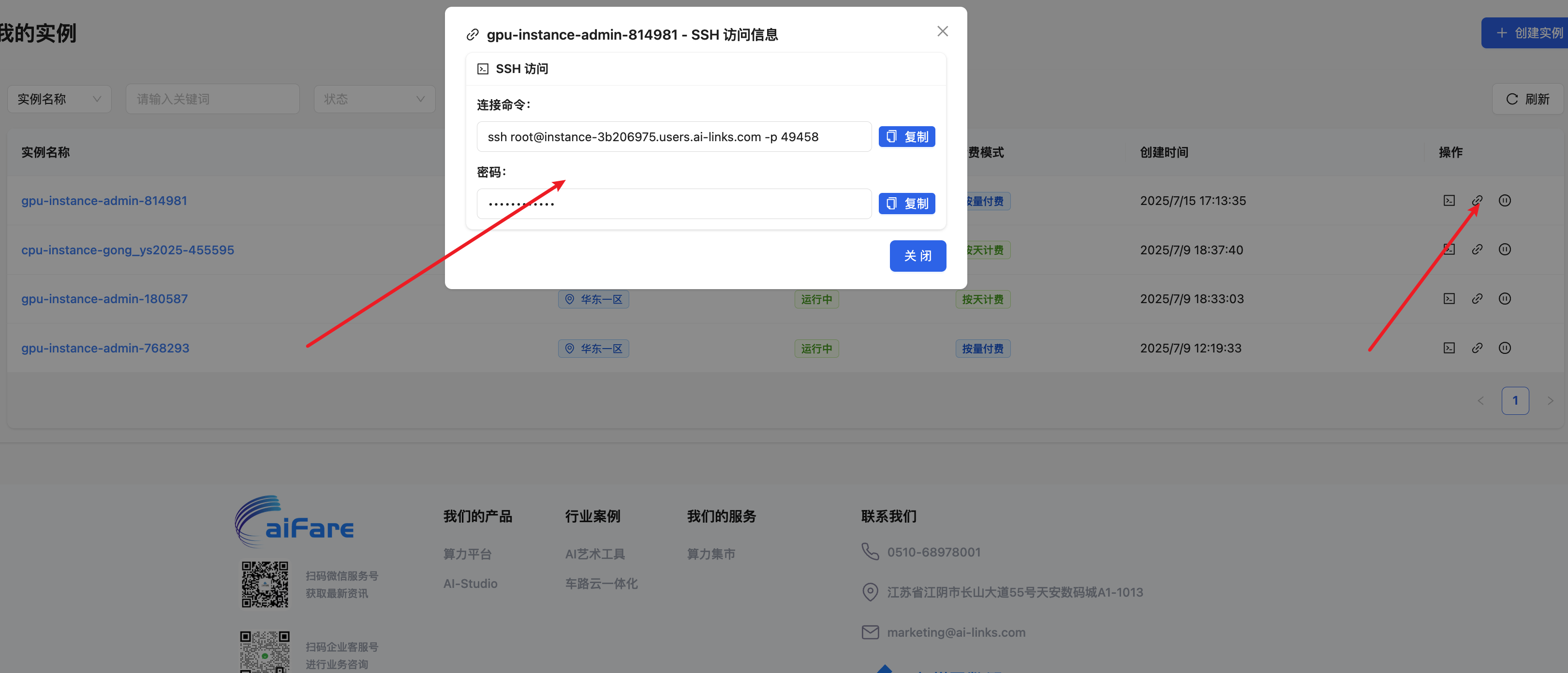
Connection Command
In your local terminal (Linux/Mac) or Windows WSL/PowerShell/SSH client, run the following command:
ssh root@instance-address -p port
# Example:
ssh root@instance-xxxxxx.users.ai-links.com -p 49458
- root: Default username
- Instance address and port: Copy from the popup window
- The first connection will prompt whether to trust the host, type yes and press Enter
- Enter the password shown in the popup to log in
Password Instructions
- The password can be copied by clicking the "Copy" button in the SSH access popup
- Passwords can be reset; if forgotten, reset it in the console
Common Issues
1. Cannot Connect/Timeout
- Check if your local network can access the public internet
- Check if the instance status is "Running"
- Check if the port number is correct
2. Wrong Password/Access Denied
- Make sure you copied the password correctly, without spaces
- Try resetting the password and reconnecting
3. Host Key Conflict
- If you have changed the instance image, delete the local known_hosts file and try again:
- Linux/Mac:
rm ~/.ssh/known_hosts - Windows: Delete
C:/Users/your-username/.ssh/known_hosts
- Linux/Mac:
4. How to Upload/Download Files After Connecting?
- It is recommended to use the
scpcommand or tools like WinSCP, FileZilla, etc.
If you encounter other SSH-related issues, please refer to the aifare help documentation or contact customer support.